How to get your website on Google: a step-by-step guide for 2026
 By Benjamin11 min read
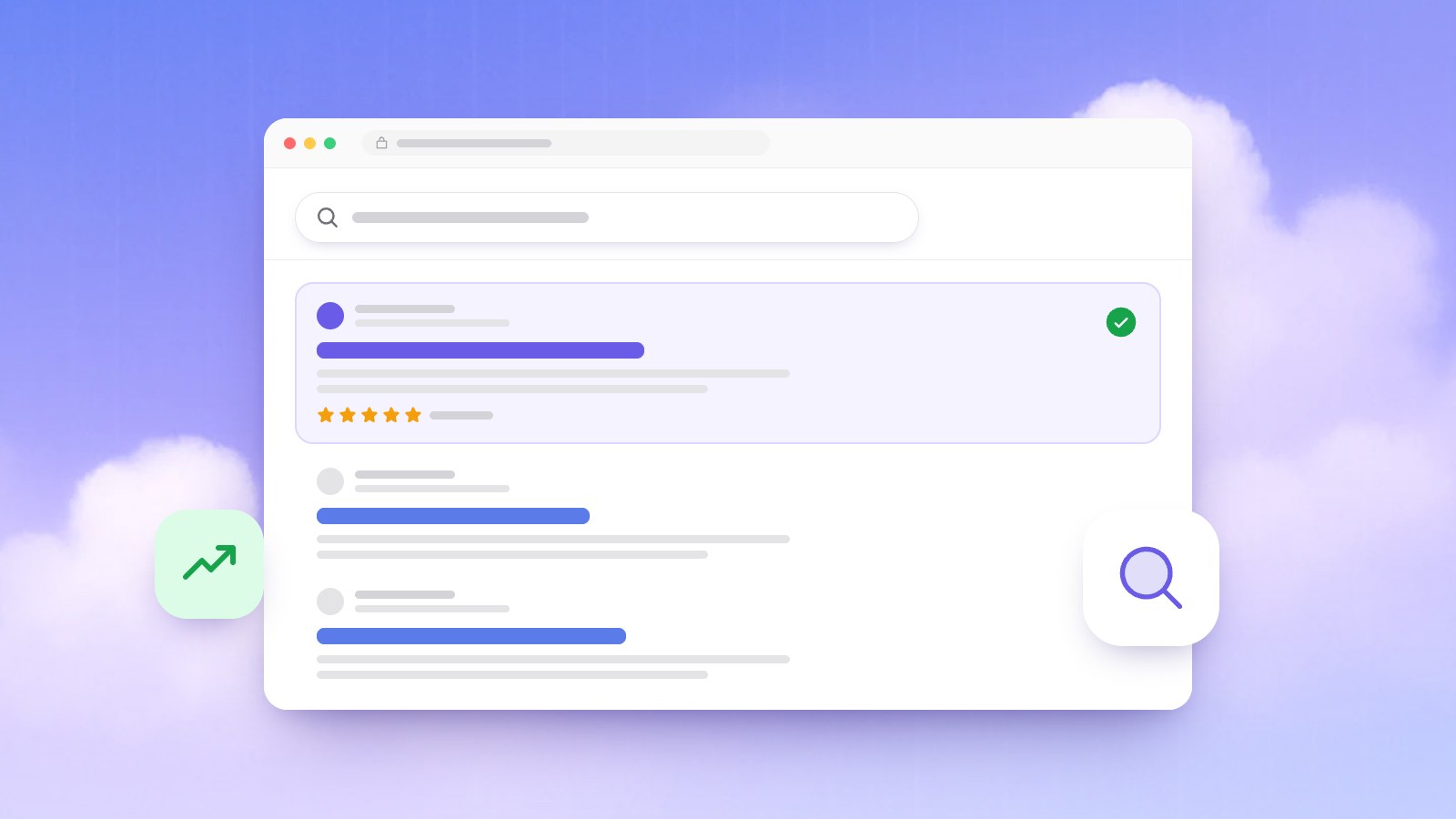
You published your website, searched for your business name and found a directory listing, an old social profile and a competitor, but not your own site. For a new website that's normal, and most of the fix is in your hands.
This guide explains how Google finds and ranks pages, from Google's own documentation, and walks you through the setup that gets a new site indexed.
In short: Google finds pages through links and sitemaps, keeps the useful ones in its index and ranks them for each search. To get on Google, verify your site in Google Search Console, submit your sitemap, request indexing of your homepage, give every page a clear title and link your pages together. Indexing usually takes days to a couple of weeks. Rankings take longer, and nobody can guarantee them.
How does Google find, index and rank a website?
Google held 91.05% of the worldwide search engine market in October 2026, according to StatCounter, so being found online mostly means being found on Google. You don't apply to be listed: Google's in-depth guide to how Search works says the vast majority of pages in its results are found automatically by its crawlers. It describes three stages, and not every page gets through all of them.
Crawling: Google discovers your pages
Google finds new URLs by following links from pages it already knows and by reading sitemaps. Its crawler, Googlebot, fetches each page and renders it with a recent version of Chrome, JavaScript included. Pages behind a login, pages blocked by robots.txt rules and sites with server problems may never be crawled.
Indexing: Google decides what to keep
Google then analyzes the text, the <title> element, images and alt text. It groups pages with similar content and picks one, the canonical, to show in results. It also notes signals such as the page's language and the country its content is local to. Indexing isn't guaranteed: low-quality content and a noindex rule are common reasons a page is left out.
Serving: Google ranks pages for each search
For each search, Google returns the indexed pages it judges highest in quality and most relevant, weighing hundreds of factors such as the searcher's location, language and device. Its own example: "bicycle repair shops" gives different results in Paris than in Hong Kong. Google also says it doesn't accept payment to crawl a site more often or rank it higher: "If anyone tells you otherwise, they're wrong."
Is your website already on Google?
Google's SEO starter guide suggests searching for site:yourdomain.com: if results point to your site, you're in the index. Add a topic (site:yourdomain.com wedding cakes) to see which pages Google knows for it. The results are a sample, not a full list, but Google's documentation for the Page indexing report says a site with fewer than 500 pages probably doesn't need that report: these searches tell you enough.
Step 1: set up Google Search Console
Search Console is Google's dashboard for site owners: it shows which pages are indexed, why others aren't and which searches show your site. You add your site as a property, then prove you own it.
| Property type | What it covers | How you verify it |
|---|---|---|
Domain (example.com) | Every subdomain, on both http and https | A DNS record, nothing else |
URL prefix (https://www.example.com/) | Only addresses starting with that prefix | HTML file, HTML tag, Google Analytics and more |
Google's page on verifying site ownership calls DNS the only way to verify a Domain property, which covers every version of your site. If you can edit your domain's DNS, choose it.
- DNS record: add the TXT record Search Console gives you in your domain's DNS settings, then click Verify. Google warns that a record added by hand can take up to two or three days to start working, and must stay in place for you to stay verified.
- HTML tag: for a URL-prefix property, paste the
google-site-verificationmeta tag into the head section of your homepage, if your website tool lets you edit it.
Some platforms offer their own way to verify, so check your website tool's help first. Google says data takes a few days to build up after you add the property.
Step 2: submit your sitemap
A sitemap is a file, usually at the root of your site (yourdomain.com/sitemap.xml), listing the pages you want Google to know about. Google's starter guide calls it optional, since Google mainly finds pages through links, but a new site has few links pointing to it. Google's guide to building and submitting a sitemap adds:
- Most content management systems generate a sitemap automatically, so look for yours first.
- One sitemap holds up to 50,000 URLs or 50MB uncompressed.
- Google ignores the
priorityandchangefreqvalues.
Submit it in the Sitemaps report of Search Console, or add a Sitemap: line with its address to your robots.txt file. Google calls this "merely a hint": it doesn't guarantee that every listed URL gets crawled.
Step 3: inspect your homepage and request indexing
Paste any address from your site into the search bar at the top of Search Console. Google's URL Inspection tool documentation describes two verdicts: URL is on Google (eligible to appear, though not guaranteed to) and URL is not on Google (it can't appear, and the details say why).
Click Test live URL to check the current page (with a screenshot of how Google renders it), then Request indexing. Google says indexing typically takes a day or so but can take up to a week or two, a request doesn't guarantee it, and there's a daily limit, so let your sitemap cover the rest. On a new site, start with the homepage: Google calls that the best first step, because it should start Google crawling your website.
Step 4: write titles, descriptions and headings that match searches
The words on a page decide which searches it can appear for, so use your customers' words, not your internal jargon. Google's starter guide notes that some people search for "charcuterie" and others for "cheese board", and that its language systems can connect a page to related searches even without the exact terms.
- Titles. Google builds a result's clickable headline from a few sources, including your
<title>element and headings. A good title, per the starter guide, is unique to the page, clear, concise and accurate, and can include your business name, location and what the page offers. Never title your homepage "Home". - Meta descriptions. The snippet under the title usually comes from the page content, and occasionally from the meta description. Write one that is short, unique to the page and covers its main points.
- Headings. Google says heading order doesn't matter for Search (it does for screen readers) and there's no ideal number of headings. Put your customers' words in the main heading.
| Element | Weak | Better |
|---|---|---|
| Homepage title | Home | Harbor Street Bakery: sourdough and custom cakes in Portland |
| Service page title | Services | Wedding cakes in Portland, Harbor Street Bakery |
| Meta description | Bakery, cakes, bread, best cakes Portland | Custom wedding and birthday cakes baked to order in Portland. Book a tasting or order online for pickup. |
With our AI website builder, every page is published with a title, a description and structured data, and you can change them by asking the AI in plain words. For the writing itself, see our guide on how to write website content.
Step 5: link your pages to each other
The starter guide says the vast majority of new pages Google finds every day come through links, and the Page indexing documentation says a page must be linked from a known page or listed in a sitemap to be crawled. So:
- Link every important page from your menu or homepage.
- Use descriptive link text ("our wedding cake designs", not "click here").
- Link related pages to each other, and keep URLs readable (
/wedding-cakes, not random characters). - Put your web address on business cards, posters and social profiles. Google's starter guide says promotion speeds up discovery by people and search engines.
Why isn't my page indexed?
Inspect the missing page and read the reason Search Console gives. The common ones:
| Reason | What it means | What to do |
|---|---|---|
URL is unknown to Google | Google hasn't found the page yet | Link to it, then request indexing |
URL marked 'noindex' | The page asks not to be indexed | Remove the noindex rule or "hide from search engines" setting |
URL blocked by robots.txt | Crawling is blocked | Remove the rule if you want the page in Google |
Crawled - currently not indexed | Google visited but didn't index it | Make the page more useful and distinct |
Discovered - currently not indexed | Google postponed the crawl | Usually wait: Google avoids overloading sites |
Duplicate without user-selected canonical | Google shows a similar page instead | Make it substantially different, or redirect it |
Soft 404 | Looks like an error page but has no 404 code | Add real content, or return a real 404 |
robots.txtdoesn't hide pages. Google warns that a blocked page can still be indexed if other pages link to it. To keep a page out, allow crawling and usenoindex, which Google can't see on a page it may not crawl.- Thin pages get skipped. The URL Inspection documentation says page quality must be "high enough to warrant indexing". Two lines of text, or ten near-identical town pages, give Google little reason to keep them.
- A few unindexed pages are normal. Google notes that most sites have some. Your important pages should be indexed.
- Errors block indexing. Pages that return a 404 or a 5xx server error aren't indexed. When a page moves, use a 301 redirect.
How long does it take to get on Google?
Indexing is usually faster than people fear, and rankings slower than they hope. Google's documentation gives these estimates:
| Milestone | Typical time |
|---|---|
| A DNS verification record starts working | Up to two or three days |
| Search Console shows data | A few days |
| Google starts crawling a new site | About a week |
| A requested page gets indexed | A day or so, sometimes a week or two or longer |
| You can judge whether a change worked | A few weeks; some changes take several months |
Your business name is unique, so few pages compete for it. "Bakery Portland" is harder: you compete with every bakery in town on hundreds of factors, including how usable your page is. See our guide to a fast, mobile-friendly website, and if you serve one area, read about Google Business Profile and local SEO.
What not to do: guaranteed rankings and other shortcuts
Google's page on hiring an SEO is blunt about the offers that land in every new owner's inbox:
- "No one can guarantee a #1 ranking on Google." Beware of anyone claiming guaranteed rankings, a "special relationship" with Google or a "priority submit".
- Be wary of firms that email you out of the blue. Google gets those emails too, addressed "Dear google.com".
- Submitting your site to thousands of search engines and link popularity schemes are typically useless.
- For "AEO" or "GEO" services that promise visibility in AI answers, check that their advice matches Google's official guidance.
- Give an auditor read access to Search Console, not full control. You stay responsible for what they do.
Some shortcuts break Google's spam policies, and sites that break them may rank lower or not appear at all. Small businesses fall for keyword stuffing (including blocks of text listing every city they want to rank for), buying links, near-identical doorway pages for each town, and using AI or other tools to churn out pages that add no value. One genuinely useful page per real service is the safe path.
Your get-on-Google checklist
- Make the pages you want found public: no login, no "hide from search engines" setting.
- Search
site:yourdomain.comto see what Google already knows. - Add a Search Console property (Domain, if you can edit DNS) and verify it.
- Submit your sitemap and request indexing of your homepage.
- Give every page a unique title with your business name, offer and location, plus a meta description.
- Link every important page from the menu or homepage.
- Put your web address everywhere you meet customers.
- Check Search Console after a week and after every big change.
Frequently asked questions
Do I have to pay Google to appear in search results?
No. Google says it never accepts money to include or rank sites in its organic results, and that appearing there costs nothing. Advertising with Google won't have any effect on your organic results either.
How long does it take for a new website to show up on Google?
Usually a few days to a couple of weeks. Google says crawling a new site can take about a week to start, and a requested page is typically indexed in a day or so, though sometimes a week or two. Rankings for competitive searches take longer.
Does my domain name affect my Google ranking?
Very little. Google's starter guide says keywords in a domain name have hardly any effect beyond appearing in breadcrumbs, and the ending (.com, .org) only matters when you target users in one country, where it's usually a low-impact signal. For the rest, see our guide on how to choose a domain name, or search for a domain.
Should I add my site to Bing too?
Yes, it takes minutes. Bing held 4.8% of the worldwide search engine market in October 2026 (StatCounter), and Bing Webmaster Tools can import your verified sites from Google Search Console, sitemaps included. Bing says traffic data can take up to 48 hours to appear.
Sources
- In-depth guide to how Google Search works, Google Search Central, 2025.
- Search Engine Optimization (SEO) Starter Guide, Google Search Central, 2025.
- Page indexing report, Google Search Console Help, 2026.
- Verify your site ownership, Google Search Console Help, 2026.
- Build and submit a sitemap, Google Search Central, 2026.
- URL Inspection tool, Google Search Console Help, 2026.
- Do you need an SEO?, Google Search Central, 2026.
- Spam policies for Google web search, Google Search Central, 2026.
- Search engine market share worldwide, StatCounter Global Stats, 2026.
- Easily verify your site in Bing Webmaster Tools by importing from Google Search Console, Microsoft Bing Webmaster Blog, 2025.